
Installing a Windows server on the Avassa Edge Platform (Yes, it can be done)

We see a lot of legacy Windows applications out there, in particular in Industrial IoT/OT domains. Common examples are HMI (human-machine interfaces) types of machines.
We’re modernizing the network, now what?
Our customers are actively modernizing their software in the network, bringing in modern applications in the form of containers. They are actively investigating and deploying AI/ML workloads into the network. All of them have chosen Linux as the foundation operating system for this.
But then there is that Windows server…

Installing Windows on Avassa
Luckily, it’s simple to deploy a Windows VM in the Avassa Edge Platform. In short, you put your Windows installation media in a container, and the Avassa Edge Platform can then deploy it on your Linux system, utilizing the built-in KVM hypervisor.
How to Install Windows on the Avassa Edge Platform
Preparing a Windows VM Image for Avassa
There are two choices here: either you install a Windows machine and prepare it on some hypervisor and export it from there, e.g., as a qcow2 file.
The other option is to place the actual Windows installation ISO file in the container and automate the installation using, for example, Windows answer files. This is the approach we chose in the example repository.
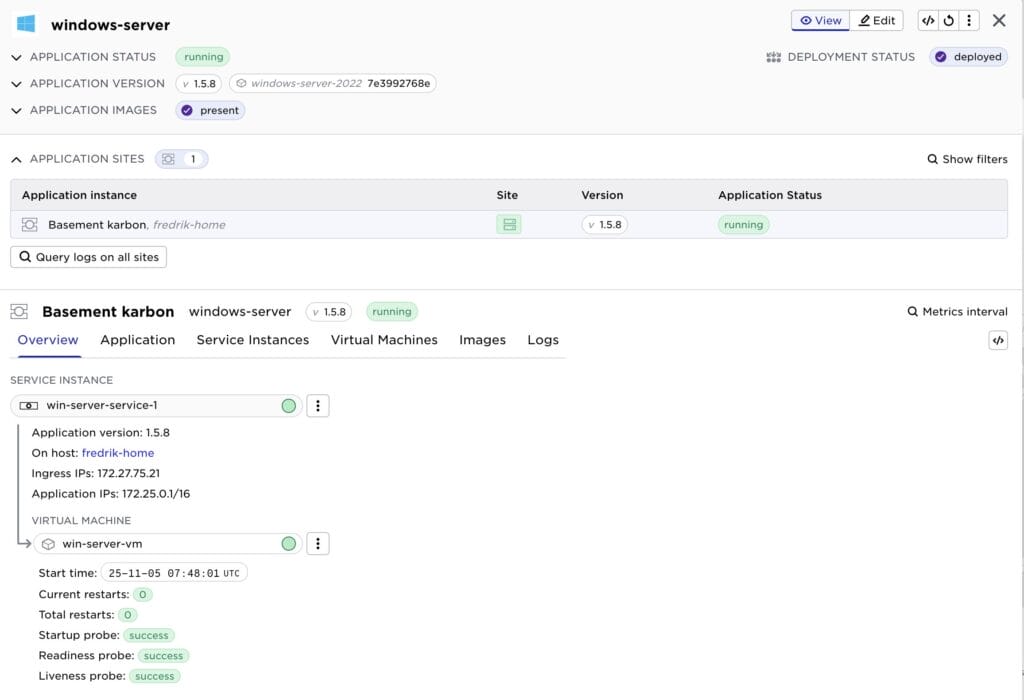
After deploying the virtual machine, we can drill down to get, e.g., IP address information on the VM.
Deploying a Windows Virtual Machine on Avassa
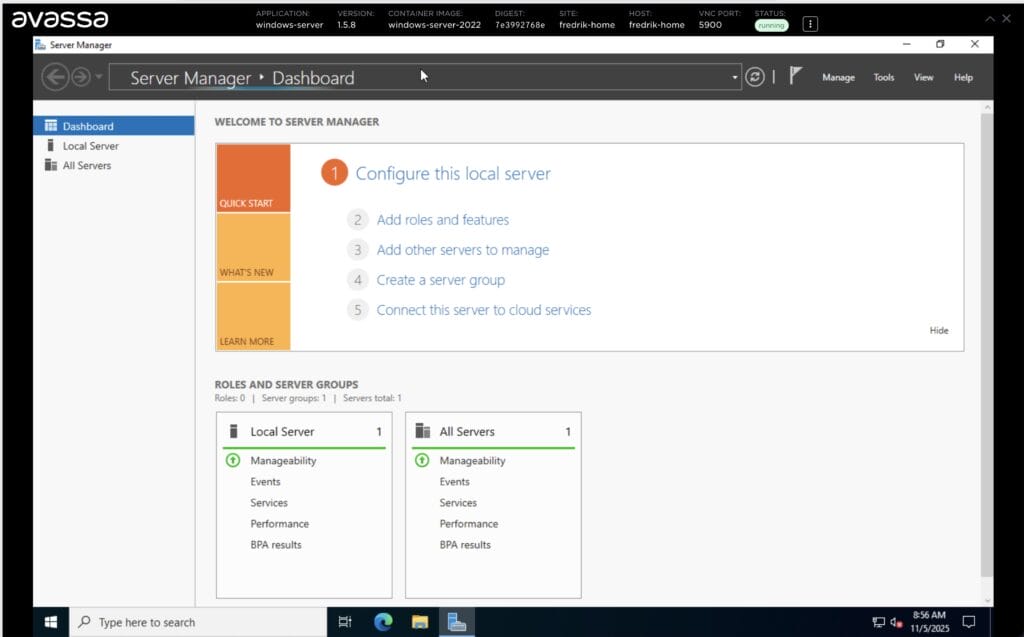
You can also open a VNC window and get access to the VM.
Accessing Windows VMs Remotely (RDP and Tunneling)
In many cases, our customers want to access the virtual machines from their laptops. If they are on the same network, they can simply connect their remote desktop (RDP) application to the ingress address.
In other cases, they are not on the same network, though; in that case, they use our tunneling function in the Avassa Edge Platform command line tool (supctl).
# Connect to site basement
# Bind to local port 13389
# The IP address is the application address, see screenshot above
supctl do --site basement applications windows-server service-instances win-server-service-1 connect tcp 3389 --bind 13389 --ip-address 172.25.0.1
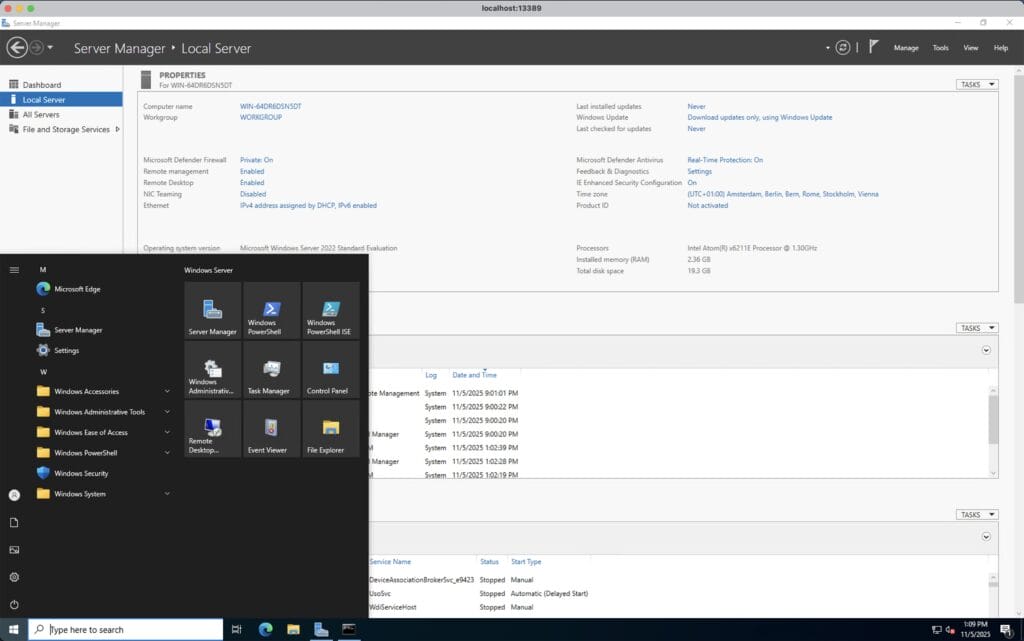
Then connect the RDP application to localhost:13389.
Conclusion: Simplify Windows VM Deployment at the Edge
The Avassa Edge Platform enables streamlined deployment of Windows VMs using containers as carriers for installation media or disk images, making it easier than ever to integrate Windows workloads into modern, containerized edge environments.
Links
https://gitlab.com/avassa-public/vm-orchestration/